
Connect Claude to Gmail, Calendar and Drive: Setup Guide
Connect Claude to Gmail, Google Calendar and Drive with Anthropic's built-in connectors: the setup steps, the approvals it asks for and the limits to plan for.
Each connector can read your mail, events and files and act on them, like sending a reply, moving a meeting or sharing a file, so who switches it on matters.
Company accounts add an owner step and a Workspace admin setting. You also choose which Google account Claude sees, and you can remove its access at any time.
What Claude can do in each Google app
According to Anthropic's Google Workspace connectors guide, the Gmail, Calendar and Drive connectors are available for all users on Claude and Claude Desktop, and each one can both read and act.
Gmail
Claude can search and read your email with plain-language requests, draft messages, and send, reply to and forward email. It can also organize mail with labels and threads, and it sees attachment details such as file names (the limits section explains what that leaves out).
An example request: "Find the last three emails from our flooring supplier and tell me which order dates they confirmed." Claude searches, reads the threads and answers in the chat; with the default settings, nothing is sent until you ask for a reply and approve it.
Google Calendar
Claude can view your events and the shared calendars you have access to, find a time that works for several attendees, create, update and delete events, and accept, decline or tentatively answer invitations.
An example request: "Find a 30-minute slot next week when Ana and I are both free in the morning." The reading part runs without changes; booking the slot is an action that asks first.
Google Drive
Claude can search and retrieve Google Docs, read Sheets, Slides, PDFs, images and Microsoft Office files (their text content; see the limits below), view a file's permissions and list recent changes in your Drive. On the action side it can share, move and trash files, upload files, and save files it creates to your Drive when code execution and file creation are enabled.
An example request: "Summarize the proposal in the Clients folder and list the open questions in it." For a file you already know, you can attach it directly with Add from Google Drive.
How to switch the connectors on
The steps depend on your plan. On Team and Enterprise an owner switches the connectors on first; after that, each person connects their own Google account from inside a chat.
On a Team or Enterprise plan: the owner goes first
An Owner or Primary Owner enables the Google Workspace connectors at the organization level before anyone can use them. Owners manage the connector under Organization settings, then Connectors; the tool restrictions they set there apply to everyone in the organization, and members can't override them.
Connecting your account in a chat
- Click the plus sign in the chat.
- Hover over Connectors and switch Gmail, Calendar or Drive on.
- Sign in with Google when asked, using the account whose mail, calendar and files Claude should see. Anthropic requires you to authenticate directly with your Google account before using the connectors.
- To work with one specific file, choose Add from Google Drive and pick it.
Your connected services are listed under Customize, then Connectors, where you can review them later.
Which Google account to connect
Claude only sees what the connected Google account can see. If that account has access to every shared drive in the company, Claude can search all of them. Anthropic's guide is explicit: "Claude can only access the Gmail, Calendar, and Drive data for the Google account you've connected." Connect each person's own work account, so Claude's reach matches the person asking and their own sharing settings.
The same applies to shared calendars: Claude can view the ones that account has access to. If a calendar or folder should stay out of reach, adjust its sharing in Google first.
What Claude asks before it acts
Sending an email, changing a calendar event and sharing, moving or trashing a file all have effects outside the chat, so the connectors treat them differently from reading.
The default: approval for each action
Anthropic's guide states: "By default, Claude asks for your approval before each of these actions." The guide also states that, by default, each action Claude takes on your behalf requires your explicit approval, so you see what Claude wants to do before it happens.
For a small business starting out, keep that approval for everything that sends, shares or deletes, at least until you have seen how Claude handles your own mail and files. Decide which actions need a person before you relax any of them, and write that rule down where the team can see it.
Tool permissions the owner can set
On Team and Enterprise plans, owners decide whether members can let these actions run without asking. In the connector's Tool permissions, each category or individual tool can be set to Always allow, Needs approval or Blocked, and the setting applies across the organization.
Anthropic notes that restricting actions in Claude never grants more access than the source system permits; it only narrows it. Google's own sharing settings still decide which files an account can reach. If you want Claude to read Drive but never share or trash anything, set those tools to Blocked. Then the rule holds for everyone, whatever each person clicks.
How Google rates mail and file access
Google's Gmail and Drive API guides sort each permission an app can request into three tiers: Non-sensitive, Sensitive and Restricted. Reading all your mail sits in a higher tier than sending it.
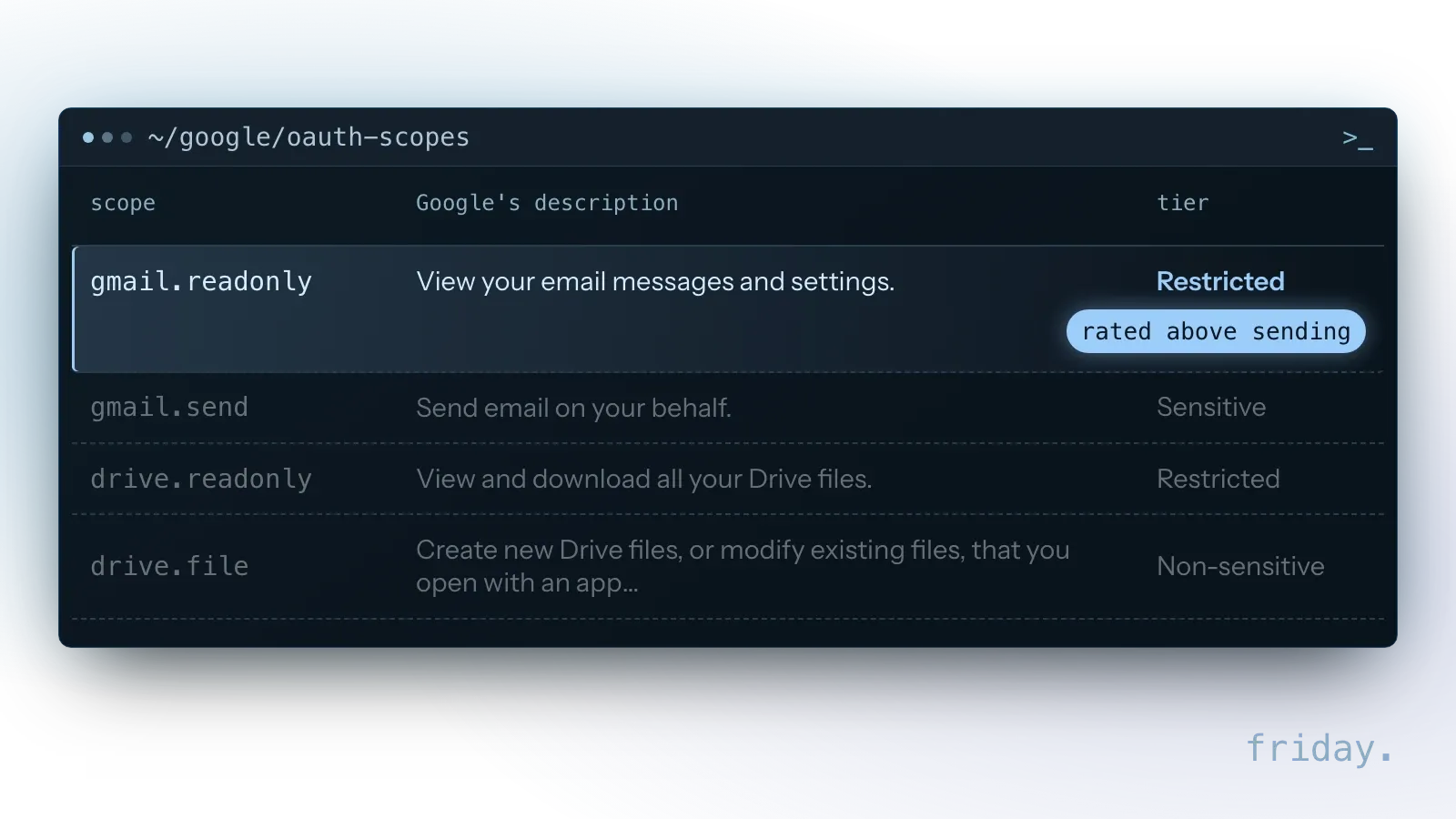
Anthropic's guide does not list the permissions its connectors request; it notes only that Google's sign-in screen mentions email sending permissions. Its approval list names sending, replying to and forwarding email, and sharing, moving and trashing files; a general line adds that each action Claude takes on your behalf needs approval. What Claude can read is bounded by the connected account's own access, any tool an owner has set to Blocked and the admin's access setting for Claude.
What it cannot read
Three limits shape what the connectors can do for you: Drive files are read as text only, each file must fit the conversation, and Gmail attachments are never opened.
Text only from Drive files
When Claude reads a Google Drive file, it extracts the text content only, and images embedded in documents are not processed. A chart or a scanned page inside a Doc is therefore not read, even though the file opens.
Files must fit the conversation
A Drive file has to fit within the conversation's context window. A very long contract or a large export may not fit; split it into smaller files or upload only the part you need.
Gmail attachments stay closed
Claude sees attachment metadata, such as the file name, but not the attachment's content. If your process depends on reading attached invoices or scanned forms, the built-in connector will not cover it on its own.
The Google Workspace admin step
If the connection fails on a company account, check the Workspace security settings: Anthropic says your admin may need to allow Claude as a trusted application first.
Trusted, Limited or Blocked
In the admin console's third-party app access controls, the admin searches for Claude and sets it to Trusted. Google's app access control guide explains the options: a Trusted app can access all Google Workspace services, a Limited app only unrestricted services, an app set to Specific Google data only the scopes the admin specifies, and a Blocked app no Google data at all.
Anthropic's troubleshooting gives the path in the admin console, at admin.google.com, and Google's Admin Help says changing it requires the Service Settings administrator privilege:
Security > Access and data control > API controls > Manage third-party app accessHow long the change takes
Anthropic suggests waiting about 15 minutes for Google's policy to propagate before trying again, while Google notes that changes can take up to 24 hours, though they typically happen more quickly.
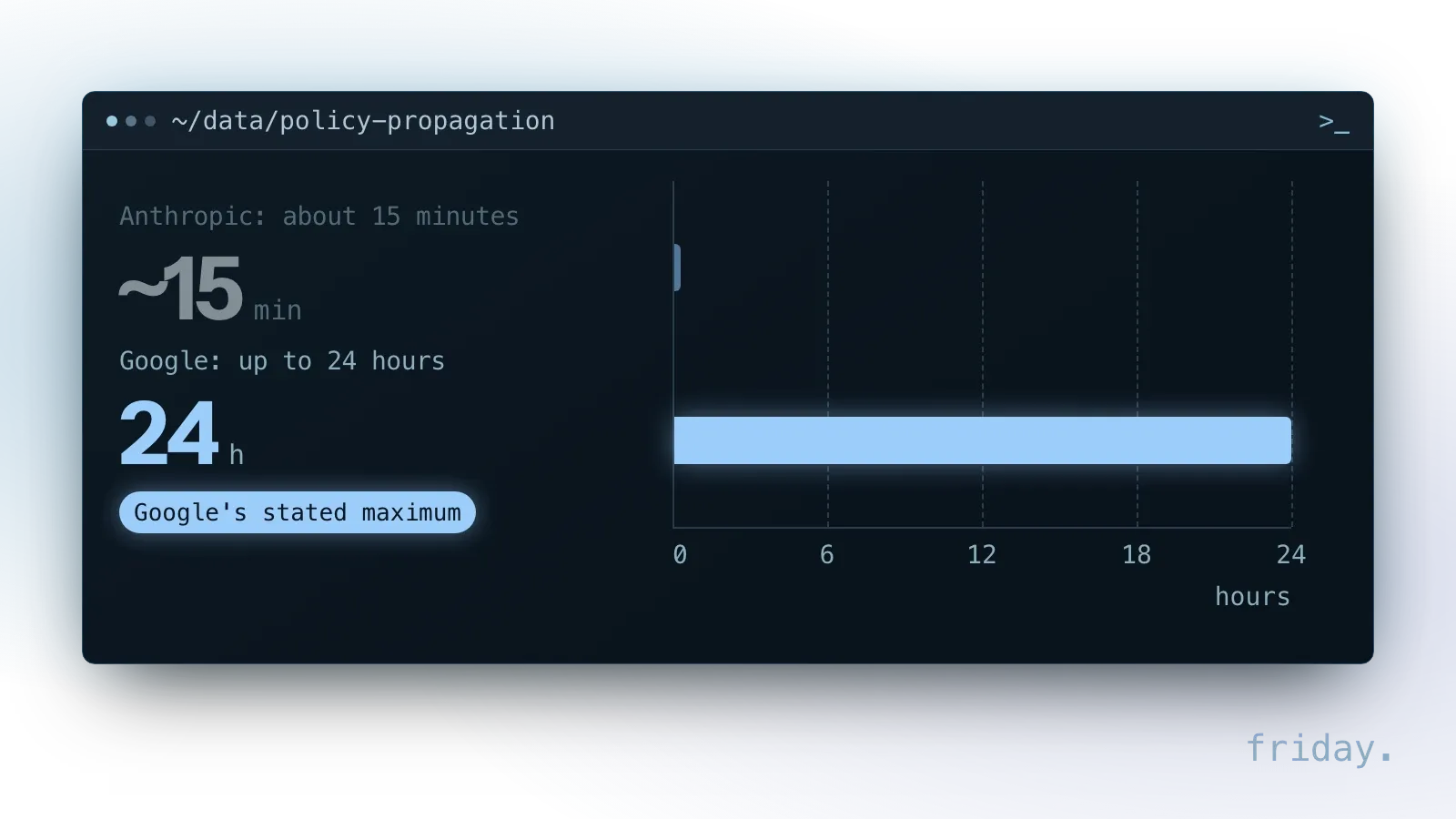
If the connection still fails after 15 minutes, the setting may not have reached your account yet. Allow up to a day before you change anything else.
Who should make that decision
In a small business the admin may be the owner. Google's guide notes that, by default, the top organizational unit is selected and the change applies to your entire organization; an admin can instead select specific organizational units, for example only the team that will use Claude first. Decide which of the two you want before you click.
What happens to your data
Anthropic says it does not train its models on Gmail, Drive or Calendar connector data. What happens to content you paste into a chat depends on your plan and settings.
Encryption and deletion
Data is encrypted at rest and in transit, and because retrieved data stays with its chat, deleting the chat deletes it.
Training on consumer and work plans
On consumer plans there is an exception: if you allow Anthropic to use your chats to improve Claude, content you copy and paste from Gmail, Drive or Calendar into a chat can be used. For commercial products, Anthropic's privacy center states that by default it does not use your inputs or outputs for training. For company mail and files, that is one more reason to use a Team or Enterprise plan with work accounts.
Other ways to get Google files into Claude
The built-in connectors need no extra setup. Three alternatives suit narrower jobs: a one-off upload, Google's preview server and third-party servers; the last two need more setup.
Upload the file to the chat
For a one-off task, download the file and attach it. Anthropic's upload guide lists up to 500 MB per file and up to 20 files per chat; files added to a project are limited to 30 MB each. Nothing stays connected afterward, and the file is only in that chat or project.
Google's own Drive MCP server
As of November 2026, Google publishes a Drive MCP server as part of the Google Workspace Developer Preview Program. Its page lists eight tools that search, read, download, create and copy files; none of the listed tools shares, moves or trashes a file, which the built-in Drive connector can do.
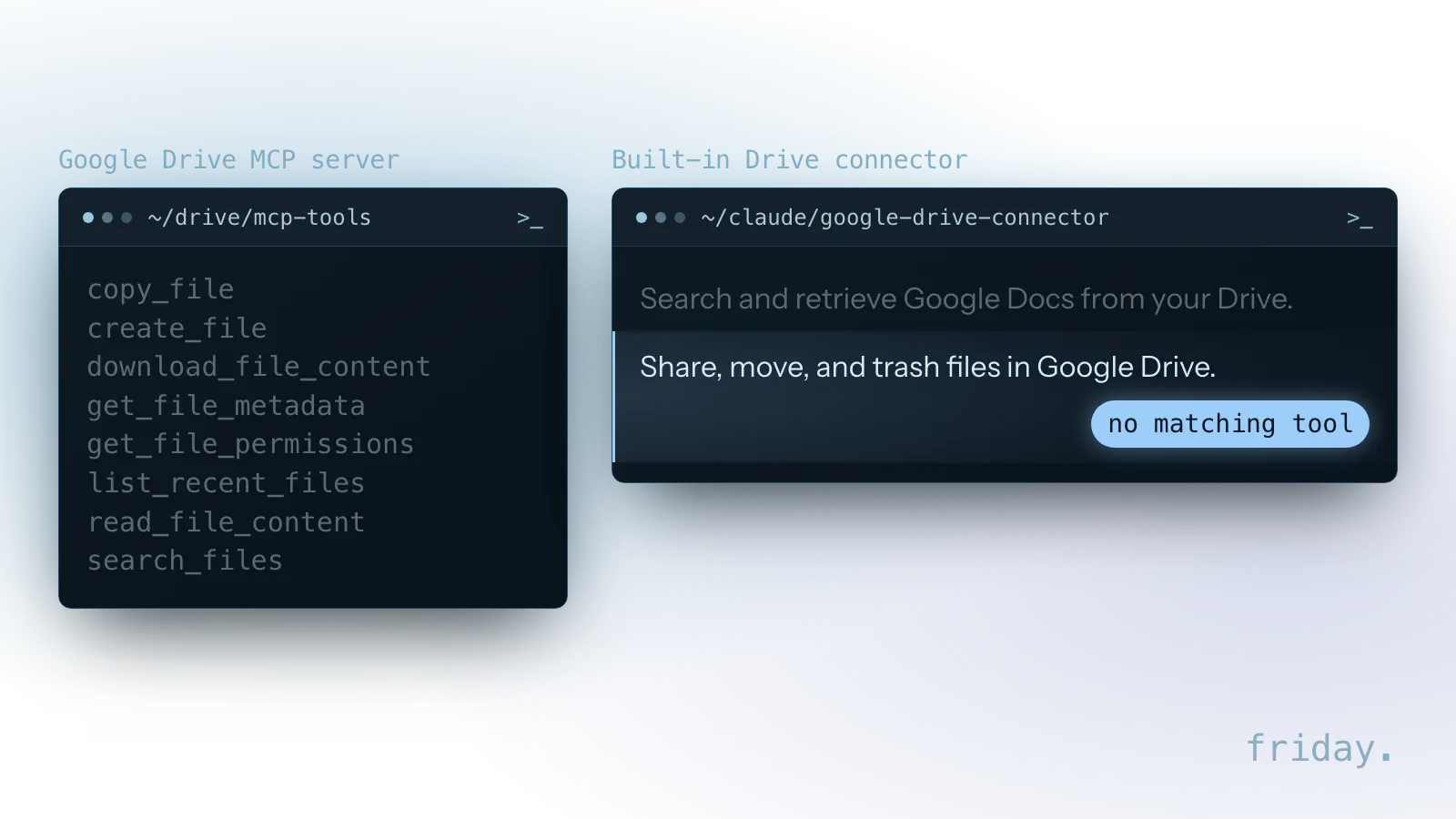
It requests two Google permissions, drive.readonly and drive.file, and Google's Drive scope list rates drive.readonly as Restricted. Setting it up requires membership in that program, a Google Cloud project, an enabled API and OAuth 2.0 authentication, and Google's page lists Claude among the clients, on the Enterprise, Pro, Max or Team plans. Google also warns never to connect it to untrusted or unverified applications. It suits teams with a developer who can set it up and maintain it.
Third-party connectors
Several companies offer their own Drive servers that you add to Claude as a custom connector. Anthropic's custom connector guide describes custom connectors as a way to reach services it has not verified, lists them on plans from Free to Enterprise, with Free limited to one, and says only Owners and Primary Owners can add them on Team plans. Claude connects to them from Anthropic's cloud, so your files pass through the provider's server: read its data terms as carefully as Google's.
When a custom connection makes sense
A custom connector is a remote server built on the open Model Context Protocol (MCP). It is worth building when you need something the built-in connectors do not offer.
What it adds
- limiting Claude to one shared drive or one mailbox label instead of everything an account can see;
- combining Google data with a system the built-in connectors do not reach, such as your CRM or job tracker;
- reading attachments or scanned files that the built-in connectors skip.
What building one takes
Building one means writing the server, hosting it where Anthropic's cloud can reach it and reviewing its security, which is the work our MCP and integration service takes on.
How to remove Claude's access
You can undo the connection from Claude, from your Google Account or, for a whole company, from the Workspace admin console. Each route below cuts the connection at a different level.
In Claude
Go to Customize, then Connectors, select the Google service and disconnect it. The same screen lets you review permissions and access levels, and Anthropic recommends disconnecting services you no longer need.
In your Google Account
Google's help on linked apps describes the steps: open your Google Account's linked apps page, select Access to your Google Account, choose the app, select See details and then Remove access. Google states that after you remove access, the app can't access your Google Account.
For the whole company
A Workspace admin can set Claude to Blocked in the same app access controls described above. Under Google's definitions, a blocked app can't access any Google data. Applied to the top organizational unit, that covers every account in the organization; applied to selected organizational units, only the accounts in them.
FAQs About Connecting Claude to Google Workspace
A paid plan, email sending, a failing work account and removing access are the questions that come up at setup. Each answer is based on the help pages checked on November 16, 2026.
Do I need a paid Claude plan?
Not for the built-in connectors: Anthropic lists them as available for all users on Claude and Claude Desktop. Team and Enterprise add the owner controls described above. Google's own Drive MCP server is a different case and lists paid plans.
Can Claude send email without asking?
Not by default. Claude asks for approval before sending, replying or forwarding. On Team and Enterprise plans, owners decide whether members can turn that off.
Why does the connection fail on my work account?
Check the Workspace admin setting for third-party apps first: Anthropic's troubleshooting says the admin may need to set Claude to Trusted, then wait about 15 minutes before you try again.
Can Claude read the PDF attached to an email?
Not through Gmail: it sees the attachment's name and details, not its content. Save the file to Drive or upload it to the chat, and Claude can read its text.
A first prompt for the read-only week
For the first week, use the connectors only to read. Turn on Gmail and Calendar, leave every approval in place, and start each morning with a request that changes nothing:
Look at my calendar for today and my unread emails from the last two days. For each meeting, list who is attending and any email thread that mentions those people or that meeting. Do not draft, send or change anything.
Compare its list with what you would have pulled together yourself. Where it misses a thread or an attachment that matters, you have found the edge of the built-in connectors. If the job should run on its own every week, such as a Monday summary of new files in a shared folder, it belongs in a scheduled workflow that no one has to remember to ask for. If that edge is a tool they do not reach, tell us which system Claude should reach next, and we will scope the connection with you.
Last checked: November 16, 2026, against Anthropic's and Google's help pages, Google's Gmail and Drive API scope lists and its Drive MCP server guide. These products change; check the linked pages before you rely on a detail.
Product details link to Anthropic's and Google's help pages, checked November 16, 2026.