
AI Email Triage for Small Business: Sorting a Shared Inbox
AI email triage for a small business: let AI label, route and draft replies in a shared info@ or sales@ inbox while your team keeps control of what goes out.
It works in Gmail or Outlook: a short label set with owners, drafts before any automatic sending, and a weekly check for messages sent to the wrong person.
Gemini or Copilot may be enough alone. If not, check what each AI provider keeps from your mail, how to measure accuracy and which tool should do the sorting.
How AI triage works, step by step
Every triage setup, from a built-in assistant to a custom workflow, runs the same few steps on each new message. Knowing them makes it easier to see where a person should stay involved.
A shared inbox has a different problem: when a message is visible to everyone, each person can assume someone else will answer it.
Read the new message
The tool reads the sender, the subject and the first part of the body. How much it reads is a setting worth deciding on purpose, because it decides what the AI provider receives.
Choose one label
It compares the message with your label definitions and picks one, or Unclear when nothing fits well. One label per message keeps ownership simple.
What the workflow writes to a Gmail message
In Gmail, applying a label is one API call on one message that lists label IDs to add and to remove. Google's reference allows up to 100 labels per update, so the one-label rule has to live in your workflow.
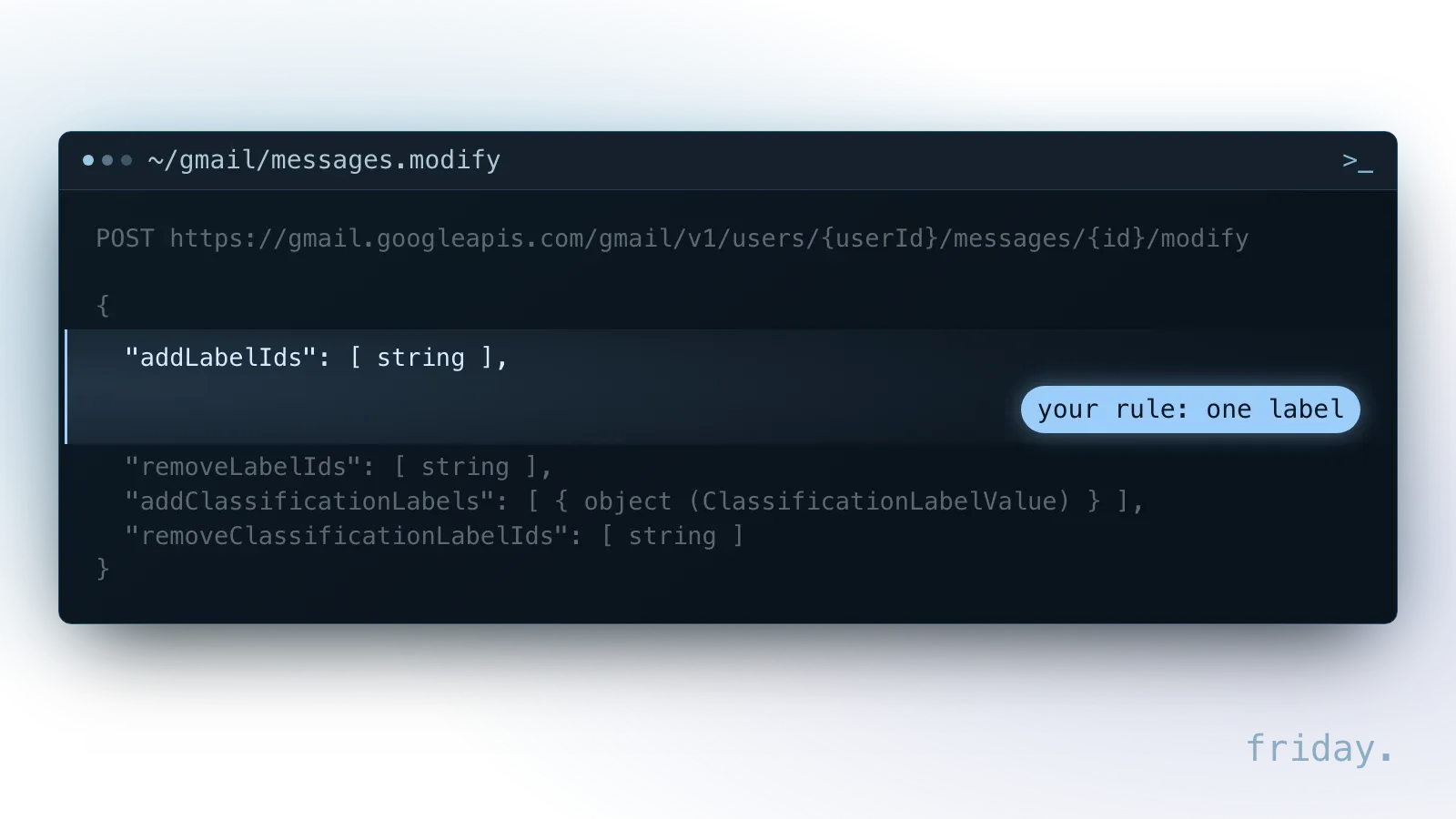
The same call removes labels, which is how a corrected label replaces the wrong one after the weekly review.
Route it to the owner
The label decides who gets the message: an assignment in the shared inbox, a notification, or a record in your CRM or task list.
Draft a reply where allowed
For labels where a draft helps, it prepares one for the owner to edit. For others, such as complaints and payments, it drafts nothing.
Leave a trail
Each decision is logged with the label it chose, so the weekly review can compare what the AI did with what a person would have done.
Start from the inbox you already have
Before adding AI, check that the shared inbox itself is set up for teamwork. Both major suites have a native option, and the AI should work inside it so assignments stay visible to everyone.
Google Workspace: a collaborative inbox
A Google Group can work as a collaborative inbox, where members assign a conversation to themselves or a colleague, the assignee gets an email notification, and a conversation can be marked complete, needing no action or a duplicate. Those states give a triage tool something to write to: the AI labels, and the assignment shows everyone who owns the message.
Microsoft 365: a shared mailbox
A shared mailbox lets a group of people monitor and send from a common address such as info@ or support@. Microsoft notes that a shared mailbox can store up to 50 GB without a license assigned to it, supports up to 25 users, and that you can't prevent users from deleting messages in it, so keep a record of what the AI labeled outside the mailbox too.
Check the Outlook rules already in place
Outlook routes mail with rules. In Microsoft's definition, Outlook carries out a rule's actions if an incoming message in the user's Inbox meets the specified conditions, and a sequence number sets each rule's order among other rules.
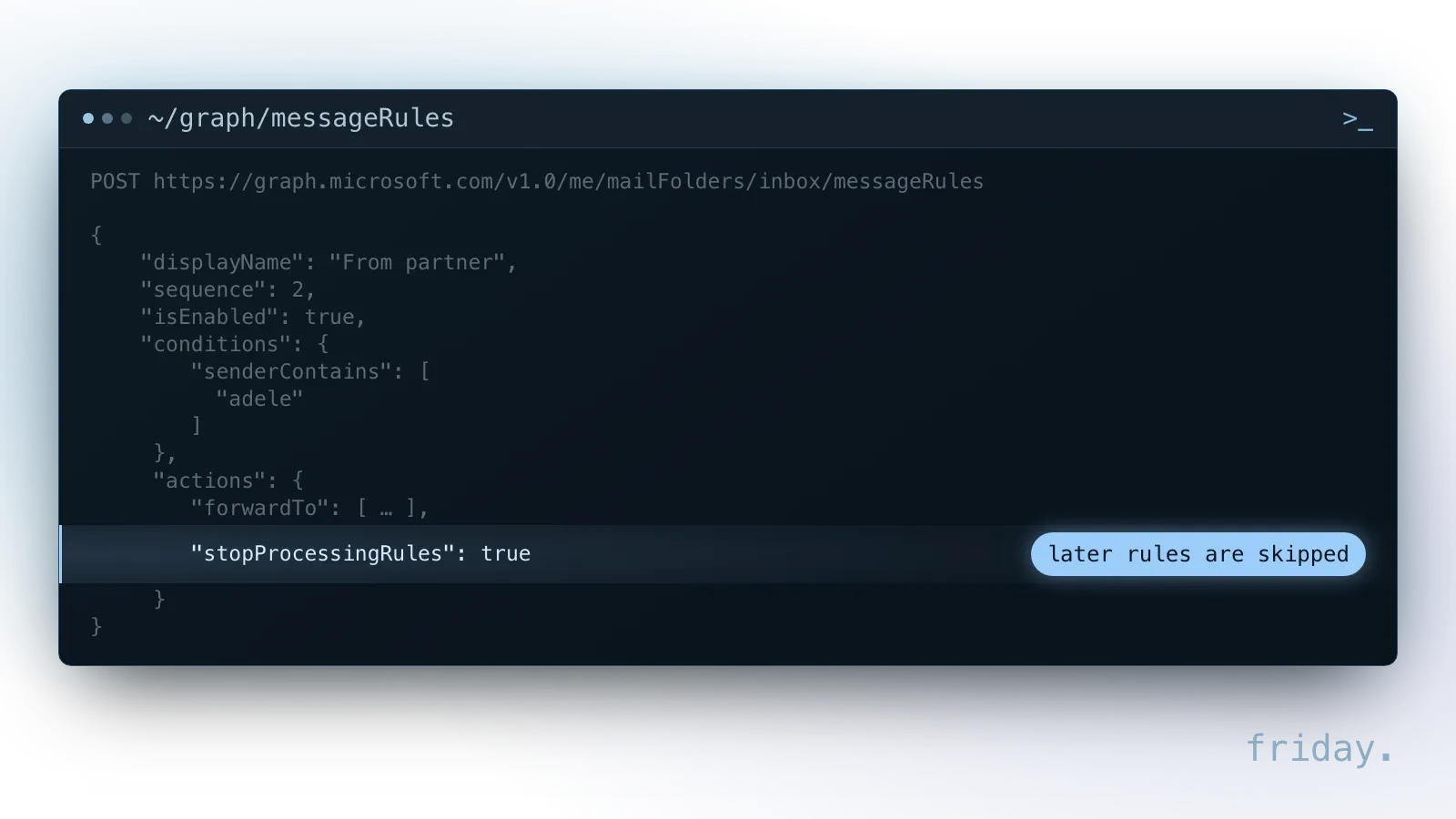
A rule can also end the run: Microsoft's own example forwards mail whose sender contains "adele" and sets stopProcessingRules to true, so when that rule matches, the rules after it are skipped. Before adding AI labels, list the rules on the shared address with their order and actions.
One person's mailbox with forwarding
If your shared address today is one person's mailbox with a forwarding rule, fix that first, because AI labels need assignments to route the work to someone, and a forwarded copy has no shared status for the team to see.
Define a short label set, each with an owner and an action
The heart of triage is the label list. Keep it short, six to eight labels is a workable start, and give each label an owner and a next step. For example, for a small service business:
| Label | Owner | Action |
|---|---|---|
| New inquiry | Sales lead | Add to CRM, draft a reply for review |
| Existing client request | Account owner | Assign to the account owner, draft a reply |
| Invoice or payment | Bookkeeper | Forward to bookkeeping, no reply drafted |
| Complaint | Owner or manager | Flag as urgent, no reply drafted |
| Vendor or partner | Office manager | Assign, reply when needed |
| Spam or sales pitch | None | Archive |
| Unclear | Inbox owner of the day | A person reads and labels it |
Why the Unclear label matters
The "Unclear" label matters most. It gives the AI a safe place for any message it is unsure about, so no guess lands in the wrong owner's queue.
Write a definition for each label
Write a one-line definition and two real example subjects for each label. Those definitions become the instructions for whatever tool does the sorting, and they let you check its work later. A sample definition: "New inquiry: someone who is not yet a client asks about a service, a price or availability. Not: job applications or vendor pitches."
Start with drafts only
Drafting saves typing, and a wrong word there costs the most. Keep a person between every draft and the send button until the drafts for a label prove themselves.

Which labels get drafts
Let the AI prepare replies for people to edit and send, and keep some labels with no draft at all: complaints and payment questions deserve a reply written by a person.
How the suites handle drafts
The vendors design their assistants this way too. Copilot in Outlook drafts a message, and the user edits it and selects Send. Microsoft's Copilot privacy documentation says its drafts and summaries give you "a chance to review the generated AI rather than fully automating these tasks."
When to allow automatic sending
After a few weeks, if one label's drafts are consistently sent unchanged, such as an acknowledgment of a new inquiry, you can consider automatic sending for that label only, with a daily sample check.
When built-in Gemini or Copilot is enough
If your team works one message at a time, the assistant already in your email suite may be all you need, with no extra account, no new data terms and nothing to maintain.
What the built-in assistants do
- Gemini in Gmail summarizes long threads, writes and refines drafts, and can apply labels or delete emails when you ask it to. It requires an eligible Google Workspace or Google AI plan; Google's admin help article on Business edition pricing, checked November 17, 2026, lists Help me write in Business Starter, Standard and Plus.
- Copilot in Outlook drafts messages and summarizes threads, with the user reviewing and sending.
Where they stop for a shared inbox
Google's help describes Gemini acting when you ask it, for example to add labels or delete several emails, and Microsoft describes Copilot drafting when a person selects it. Neither page describes sorting every new message on arrival with the same rules for the whole team.
When you need a workflow
If you need every incoming message labeled and routed automatically, with the same rules for everyone, you need a triage workflow that runs on its own. That is the kind of rule-based routing we set up as workflow automation; when sorting needs judgment across several tools, it becomes a job for a custom AI agent with clear limits.
Know what the AI provider sees and keeps
A triage tool reads every message in the inbox, including the ones with customer details. Check the provider's data terms before connecting it, for whichever model ends up reading your mail.
What each provider states
- Google Workspace: Google's privacy hub states that Workspace does not use customer data for training models without the customer's prior permission or instruction, and that interactions with Gemini stay within your organization.
- Microsoft 365: Microsoft states that prompts, responses and data accessed through Microsoft Graph aren't used to train foundation models, and that Copilot only surfaces data the user can already view.
- OpenAI API: OpenAI's data controls page says data sent to the API is not used to train its models unless you opt in, and abuse monitoring logs are kept for up to 30 days by default.
- Anthropic commercial products: Anthropic states that by default it does not use inputs or outputs from its commercial products for training, and that API inputs and outputs are deleted within 30 days, with listed exceptions.
Send the AI less
Consumer plans can have different terms, so connect a shared business inbox only through a business or API account. The FTC's guidance for businesses starts with two principles that fit here: know what personal information you have, and keep only what you need. Sending the AI only the subject and first lines of each message, without whole threads or attachments, also limits what the provider receives.
Grant the narrowest Gmail access
Sending less starts with the access you grant. Google's Gmail API scopes page tells developers to "choose the most narrowly focused scope possible," and lists one that sees labels and headers, but not the email body.
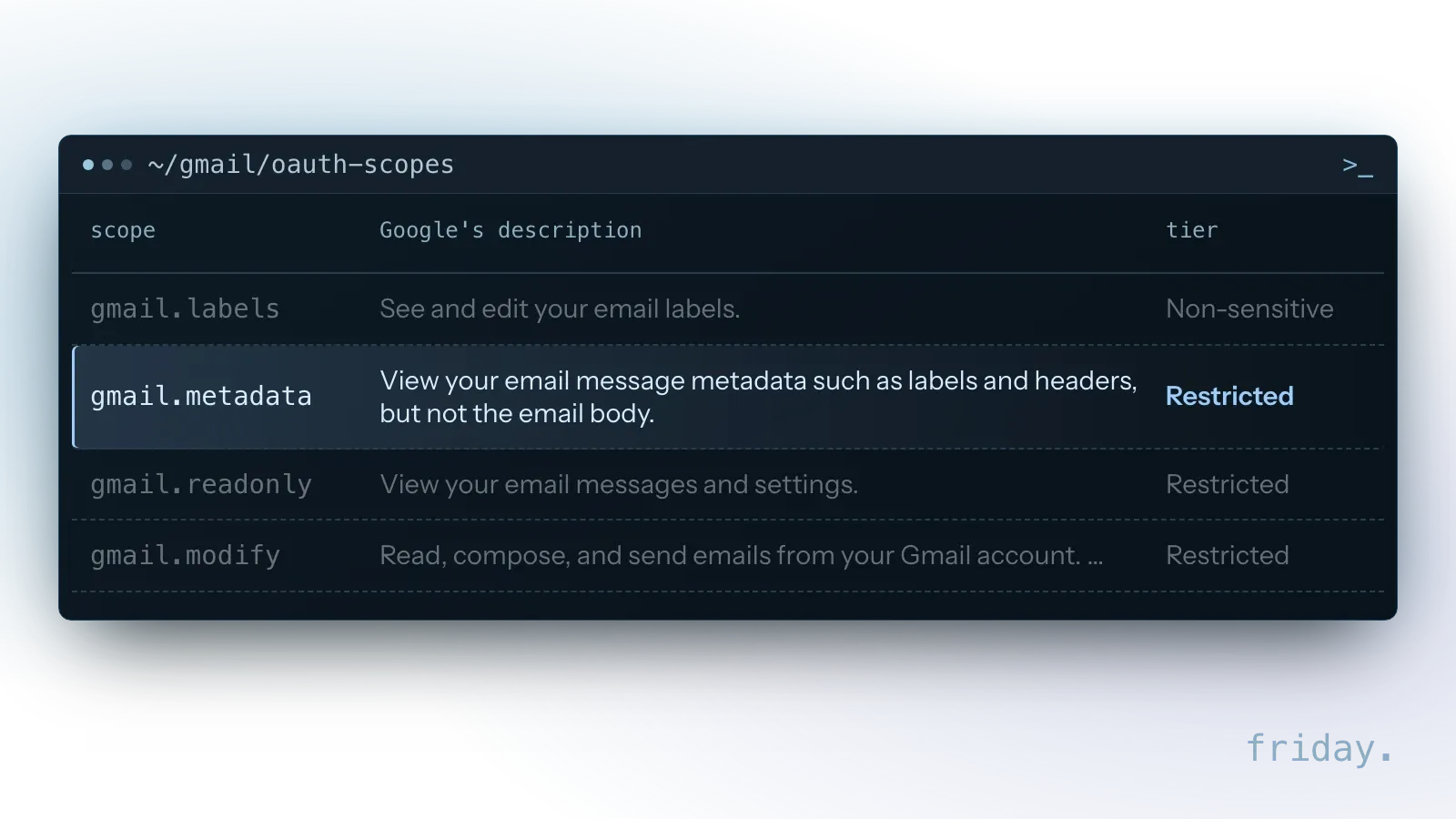
Writing a label takes more: the modify call accepts only gmail.modify, gmail.modify.restricted or full mail access, and Google describes gmail.modify as able to read, compose, and send emails. Ask your developer or vendor which scope the consent screen requests and why a narrower one won't do.
Catch the misroutes
Some messages will get the wrong label, and a few will reach the wrong person. Plan how you will find them, and how you will know whether the setup is getting better each week.
A review routine
- Daily: the inbox owner of the day skims the Unclear label and the last day's Complaint and Invoice labels.
- Weekly: check a sample of 20 labeled messages against the label definitions and note every wrong label.
- When a label keeps failing: rewrite its definition, add examples, or merge it with another label before you touch anything else.
Three numbers to track
- Wrong labels per weekly sample: out of the 20 checked, how many a person would have labeled differently.
- Messages in Unclear: a high count means the definitions are too narrow; a count near zero can mean the AI is guessing instead of admitting doubt.
- Drafts sent unchanged: per label, the share of drafts the owner sent without editing, which tells you where automatic sending might later be safe.
Keep a simple log of wrong labels; over a few weeks it shows which definitions need work and whether the error count is falling.
Three questions that decide the tool
Once the labels hold up on paper, three facts about your own inbox point to the right tool. Answer them from last month's mail, before you sit through any vendor demo.
| Question | Assistant used on request | Triage workflow |
|---|---|---|
| Runs | Acting when you ask it | On its own, as messages arrive |
| Fits when | A person already reads every message as it lands | Messages wait hours because nobody owns them |
| Gives you | No extra account, no new data terms and nothing to maintain | Every incoming message labeled and routed, with the same rules for everyone |
How many messages arrive each day?
If a person already reads every message as it lands, an assistant used on request may be enough. If messages wait hours because nobody owns them, sorting on arrival is what you are missing, and that takes a workflow.
Where does your team answer customers?
If replies already go out from a help desk, start with the routing that tool offers and write your label definitions into its rules. If replies go out from Gmail or Outlook, the triage should write labels and assignments where the team already works.
Who will own the label definitions?
Every route depends on someone who updates the definitions when the log shows wrong labels. Name that person before you choose; without one, any tool will drift as your mail changes.
FAQs About AI Email Triage
Once the labels are drafted, practical doubts follow: shared inboxes, how many labels to begin with, and whether the AI should ever answer customers without a person checking first.
Can AI triage work with a Google Group or shared mailbox?
Yes. The triage workflow reads new messages and applies labels or assignments; the collaborative inbox or shared mailbox remains where your team works.
How many labels should we start with?
Six to eight, including one for unclear messages. More labels mean more overlap and more wrong guesses.
Is it safe to let an AI read customer email?
That depends on the provider's terms and on what you send it. Use a business or API account, check the data statements listed above, and send only what the label decision needs.
Should the AI reply to customers automatically?
Not at first. Start with drafts for a few labels and only consider automatic sending for simple acknowledgments that are consistently approved unchanged.
Sort 50 messages by hand first
Before choosing any tool, sort the last 50 messages in the shared inbox by hand. It takes an afternoon and gives you the label set, the owners and the first test data.
Label and assign
Sort each message into your draft labels and write an owner next to each. Where two labels seem to fit, tighten their definitions until only one does.
Study the leftovers
The messages that fit no label show you what the Unclear rule will need to catch, and which definitions need another example.
Keep the 50 as a test set
Save the hand-sorted messages with their labels. When a tool is set up, run the same 50 through it and compare its labels with yours before it touches new mail.
Once your hand-sorted labels hold up, share your label list and owners with us, without the emails themselves, and we will map how they could route into your CRM and task list.
Last checked: November 16, 2026, against Google's, Microsoft's, OpenAI's and Anthropic's help and privacy pages, and the Gmail API and Microsoft Graph references.
Product and data-use details link to the providers' own pages, checked November 16, 2026.