Built-in AI vs Workflow Tools: Which One Should Own the Job?
Built-in AI vs workflow tools: when the AI inside your apps is enough, where it stops, and when a job needs a workflow with a named owner who maintains it.
AI features in apps you already use handle jobs that start and end in one app. One that writes to other apps, applies rules or handles errors needs a workflow.
Sort built-in AI vs workflow jobs into three levels, follow one supplier invoice to approval, and see how each tool charges and what each asks you to maintain.
Built-in AI vs workflow: the short answer
Use the AI inside an app when the whole job lives in that app. Build a workflow when the job has to act across apps, follow rules, wait for a person or recover from a failed step.
One question sorts the job
Ask where the job's input comes from and where its output has to land. If both sit in the same app, the built-in feature already has the data and the permissions it needs. If the output lands somewhere else, built-in AI vs workflow comes down to what carries the work across that gap.
| Level | The job | Use | Maintained by |
|---|---|---|---|
| 1 | Stays in one app | That app's AI feature | The vendor |
| 2 | Reads other apps | The app's connectors | The vendor and the account admin |
| 3 | Changes other apps | A workflow | A named owner |
Convenience against ownership
In Friday's view, built-in AI vs workflow is a trade between convenience and ownership. A built-in feature is convenient: the vendor ships it, fixes it and decides how it behaves. A workflow is yours: you decide every step and inherit every failure. Convenience costs control; ownership costs someone's hours each month. Feature lists and prices move with each release, so judge the two on maintenance and reliability.
Level 1: AI features in apps you already use: when the job stays in one app
Three conditions mark a level 1 job: input and output live in one app, one or two people touch it, and a mistake stays inside that app. When all three hold, the built-in feature is the simpler choice.
| Feature | Plan the vendor names |
|---|---|
| Zoom meeting summaries | A licensed user on Zoom Workplace Pro or a higher plan |
| Zendesk limited Copilot features | Professional and above |
| Zendesk Enhance writing (full Copilot) | Copilot add-on for Suite and Support Professional and above |
| Intercom Copilot | Free to use in 10 conversations per agent each month |
| Notion AI | Business and Enterprise; Free and Plus get a trial |
Meeting summaries in the video tool
Zoom says core AI features are included with paid Zoom Workplace plans. Meeting summaries have to be turned on in settings first. Zoom sends the summary by email, posts it to the meeting's group chat when chat access is on, and shares it with participants if the host enables sharing. Nothing outside Zoom changes.
Writing help in the help-desk inbox
Zendesk's Enhance writing, part of its Copilot add-on, can expand an agent's comment or make it sound more friendly. Intercom describes Copilot as a personal AI assistant in the inbox. In both, the AI works in the agent's inbox, and the agent sends the reply.
Text cleanup in the notes app
Notion AI can make a section longer or shorter on the page, and you accept or discard the change. Its high credit consumption models spend Notion credits, and a workspace owner has to turn them on first.
Why an outside workflow adds nothing here
Moving a level 1 job into Zapier, Make or n8n adds an account, a connection and a second system to watch, and the result does not improve. For level 1 jobs, switch on the AI features in apps you already use, decide who may use them, and let the vendor keep them running.
Level 2: built-in connectors that read your other apps
Some AI features in apps you already use now reach into other tools to answer a question: a notes app that searches your drive, or a chat tool that searches the company. That is level 2.
What built-in connectors can see
Notion's Plus plan connects to tools like Slack and Google Drive; its AI Enterprise Search, on Business and Enterprise, reads from connectors for Slack, Microsoft Teams, Google Drive, Jira and more. Slack's Enterprise+ plan adds enterprise search across connected apps, databases and systems.
Good jobs for built-in connectors
Built-in connectors suit questions whose answer is text you read. Where is the signed contract? What did the client ask for last month? The answer comes back into the app you asked from, and nothing in the other system changes.
Where built-in connectors stop
The limit is in the verb. A job that creates a record, changes a status or sends something on your behalf needs write access, a rule for when to do it and a plan for when it fails. Before you plan on a built-in connector to create or change records, find the setting that allows it.
Level 3: do I need Zapier, Make or n8n? Name the owner first
On the built-in AI vs workflow line, a job is level 3 when it changes data in other apps, follows conditions, waits for a person or recovers from errors. Then ask which platform, and who owns it.

Four things that call for a workflow, in Friday's view
- Writes into other systems: it creates the bill, updates the row or opens the task in another app.
- Applies conditional rules: one path below a limit and another above it, with the rule written down.
- Waits for human approval: it pauses, asks a named person and moves on only after a yes.
- Recovers from errors: it notices a failed step, holds the item and tells someone.
If a job needs none of the four, the answer to "do I need Zapier?" is no. If it needs one of them across several apps, plan a workflow; first check whether the app's own automations cover it.
Give the workflow an owner before you build it
Apps change after a workflow goes live: a field gets renamed, a permission is removed, a token runs out. Before you build, name the workflow's owner: the person who receives the alerts, reads the error and fixes the cause. Retries, fallbacks and recovery are the next things that owner plans.
Then pick the platform for that owner: Zapier, Make or n8n. Weigh the hours that person can give each week, their skills and the job's monthly runs.
Worked example: a supplier invoice from the shared drive to approval
One job shows the built-in AI vs workflow line in practice. A supplier sends an invoice as a PDF, someone saves it to the shared drive, and the business wants a draft bill, a tracker row, a sign-off.
The six steps
For example, a small distributor with a bookkeeper and an owner who approves large bills could run this sequence for every supplier invoice:
| Step | Where | What it does | Level |
|---|---|---|---|
| 1 | Shared drive | A new PDF starts the run (workflow trigger) | 3 |
| 2 | AI step, or the accounting tool's own bill capture | Pulls out supplier, date and amount | 1 or 3 |
| 3 | Accounting tool | Creates a draft bill | 1 or 3 |
| 4 | Tracking sheet | Adds a "draft bill created" row | 3 |
| 5 | Team chat | Above the limit, asks the owner to approve | 3 |
| 6 | Chat or email | On failure, holds the invoice and alerts the bookkeeper | 3 |
Where built-in AI fits inside it
In built-in AI vs workflow terms, reading the invoice and drafting the bill can stay inside an accounting tool that captures bills on its own. That built-in route stops when the job also needs the tracker row, the approval above a limit and the failure alert. So here, do you need Zapier or a similar platform? Yes: four of the six steps need a workflow, and the approval and the alert carry its reliability.
The approval above the limit
The rule is one line: above the limit, ask the owner in team chat before the bill goes further; below it, the draft waits for the bookkeeper's review. Keep the limit in a cell of the tracking sheet, so changing it never means editing the workflow.
When a step fails
Say the accounting tool rejects the supplier name because it matches no vendor record. The workflow holds that invoice, marks the tracker row "needs attention" and messages the bookkeeper with the file name and the error. Without a named person on the receiving end, the same alert lands in an inbox nobody reads.
How built-in AI is charged in November 2026
A per-person charge grows with headcount; a charge per credit, run or outcome grows with volume; AI included in a plan grows only when you change plans. Vendors pick one unit or mix them.
| Vendor | How the AI is charged |
|---|---|
| Zoom | Core AI included with paid Workplace plans |
| Slack | Summaries on paid plans; more AI on Business+ and Enterprise+ |
| Notion | Included on Business and Enterprise; credits for high-consumption models |
| Zendesk | Limited Copilot on Professional and above; full Copilot is an add-on |
| Intercom | Copilot per agent; Fin per outcome |
| Airtable | Credits per user by plan, pooled |
| HubSpot | Credits; the included amount depends on your highest tier |
Included in the plan
Some AI features in apps you already use come with the plan. Slack says, "The Slack AI add-on is no longer available to purchase on the Slack website." Conversation and thread summaries and huddle notes come with every paid plan, and Business+ adds AI search, daily recaps and file summaries. Zendesk Professional and above include limited Copilot features, and the full Copilot is an add-on for Suite and Support Professional and above. Included AI reaches only the people whose seats sit on the tier that carries it, so check who on the team holds that tier.
Per person or per agent
Intercom sells unlimited Copilot as an optional add-on priced per agent. That cost grows with headcount, whether or not each person uses it.
Per credit, run or outcome
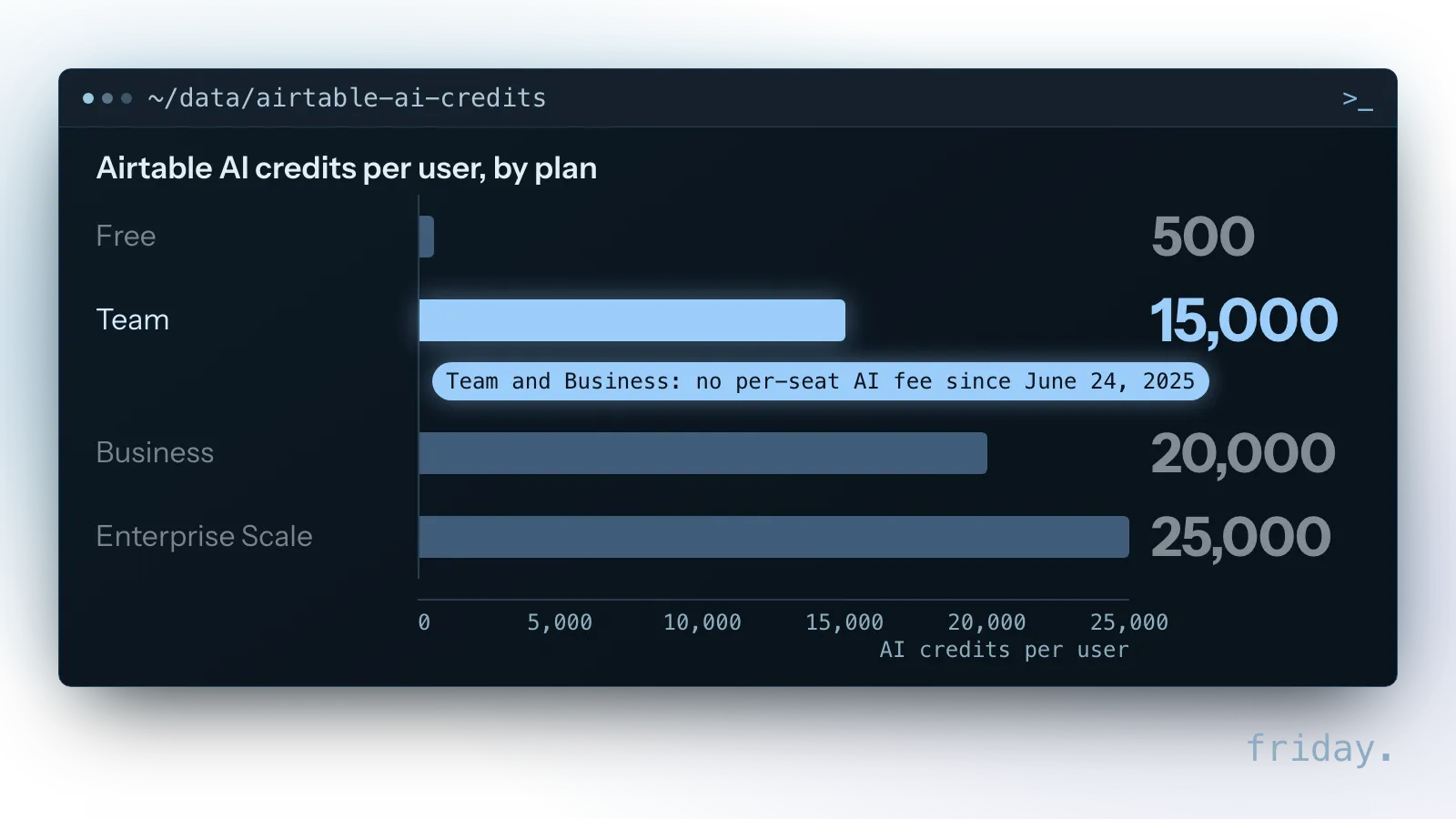
Airtable says, "customers on Team or Business plans will no longer be charged for AI on a per-seat basis," a change from June 24, 2025. Its AI credits are Free 500, Team 15,000, Business 20,000 and Enterprise Scale 25,000, counted per Free user with Editor permission and above, per billable collaborator on Team, and per paid user on Business, self-serve or sales-led, and Enterprise Scale. Credits are pooled for shared use across the workspace on Free and Team.
Certain HubSpot features, such as its Customer, Prospecting and Data agents and Data Studio syncs, use HubSpot Credits; if you have bought extra credits to allow overages, they are "billed on a monthly basis, in arrears, in increments of 10 HubSpot Credits, rounding down," and unused credits do not roll over. Workflow platforms charge for what runs, each in its own unit.
Built-in AI vs workflow upkeep: what each asks you to maintain
Reliability is where built-in AI vs workflow part ways. A vendor you do not control maintains a built-in feature; a person you choose maintains a workflow, if that person exists and has the hours.
What the vendor maintains, and decides
The vendor keeps a built-in feature working inside its own app, and you accept its decisions. Slack stopped selling its AI add-on on its website and folded summaries into paid plans; Airtable moved from per-seat AI charges to credits. Each change arrived on the vendor's schedule, which is the price of convenience.
What you maintain in a workflow
- Connections: each app login, and who renews it when it expires.
- Field mappings: which value goes into which field, rechecked when an app changes.
- Rules and alerts: the limits, kept where the owner can read them, and who hears about a failure.
- A runbook: one page that says what starts the run, what each step changes and what to do when it stops.
Signs a job has outgrown its app
Watch for people copying output from AI features in apps you already use into a second app by hand, a rule that lives in someone's head, approvals chased in chat with no record, or a failure a customer finds first. Friday's rule of thumb: two signs on the same job settle built-in AI vs workflow for it, so build the workflow and name its owner.
FAQs about built-in AI vs workflow tools
Questions about when an app's own AI is enough, what built-in connectors can do, when an approval needs a workflow, and how to weigh built-in AI vs workflow beyond the price of each plan.
Do I need Zapier if my apps already have AI?
Only if the job crosses apps. If input and output stay in one app, its own AI does the job and the vendor keeps it running. Once the job writes into another system, applies a rule, waits for approval or alerts someone on failure, plan a workflow on Zapier, Make, n8n or bespoke code.
Do I need Zapier for an approval step?
Do you need Zapier for an approval that stays in one app? Check that app's own approval features first. If the approval has to pause a job in one app, ask a person in another and then continue, that is a workflow step on Zapier, Make, n8n or bespoke code.
Can built-in connectors update records in another app?
Plan on them for reading. Creating or changing a record in another app is a workflow step with its own rules and alerts, unless you find the setting that allows the connector to write.
Which AI features in apps you already use cost extra?
It depends on the vendor and plan. Zoom includes core AI with paid Workplace plans, Zendesk sells the full Copilot as an add-on, Intercom charges unlimited Copilot per agent, and Airtable and HubSpot use credits.
Is built-in AI vs workflow a price decision?
Partly, but upkeep decides more. A feature that is included can still leave a person copying numbers between apps, and a workflow with a low bill still needs an owner's hours. Before anyone asks "do we need Zapier?", compare the hours as well as the invoices.
Who should manage the AI features in apps you already use?
The admin of each app turns features on and decides who may use them. In Friday's view, one person should also list which features are on and which plan carries them.
Can one job mix both?
Yes, and the invoice example does: the accounting tool can read the bill, and the workflow handles the tracker, the approval and the alert. In Friday's view, built-in AI vs workflow is a choice per step.
Sort your next job by level
Sorting built-in AI vs workflow takes one question per job: switch on what you already pay for, and plan a workflow, with an owner, only where a job has to cross apps.
- Write down where each job's input comes from and where its output lands.
- Mark it level 1 if both are in one app, level 2 if it only reads from other apps, level 3 if it changes them.
- For each level 3 job, name the owner, then ask: do we need Zapier, Make, n8n or bespoke code?
If a level 3 job is worth building and nobody on the team has the hours, our workflow automation service builds it and hands it over with documentation. Or tell us about the job and we will help you place it on the right level.
Last checked: November 20, 2026, against each vendor's help and pricing pages. Plans and AI features change, so check them on the vendor's own page on the day you decide.
Plan and feature details come from each vendor's own pages, checked November 20, 2026.