
Claude Computer Use Beta on Team Plans: What to Set First
Anthropic put computer use in beta on Team and Enterprise plans a day after Google brought it to the Gemini app for Mac. What owners set before turning it on.
Anthropic put Claude computer use in beta on Team and Enterprise plans on November 20, 2026, a day after Google brought computer use to the Gemini app for Mac.
In Friday's view, decide which apps Claude may open and which steps stay with a person before turning it on. It is off by default; only an Owner can flip it.
Claude computer use is now in beta on Team and Enterprise plans
Anthropic's release notes for November 20 add computer use to its business plans. It is a beta, reaching organizations gradually, and it always runs on a computer with Claude Desktop open.
What Anthropic shipped on November 20
Anthropic's release notes describe the feature in one sentence: "Computer use lets Claude see a user's screen and work in the desktop apps they allow." The entry, dated November 20, 2026, says it is "now available in beta on Team and Enterprise plans, and is rolling out to organizations gradually." Claude clicks and types the way a person would, the setup guide adds.
On Team plans, nothing changes until an Owner or Primary Owner turns it on. If the setting is missing or cannot be turned on, the guide says it has not reached the organization yet, or the organization cannot have it.
Where it runs and where it does not
Claude computer use works only in what Anthropic calls the new Claude experience, where the Chat and Cowork unified capability is on. Users run it from Claude Desktop on macOS 14 or later and on Windows. They can also start it from Claude on the web or Claude Mobile, if the organization's Computer access setting is on and a computer with Claude Desktop open is connected to the chat. The guide says it does not work in tasks started with the separate "Cowork" option, or in Claude Code.
Computer access is a separate setting: it lets users reach their computer from scheduled tasks, Claude on the web or Claude Mobile. An owner who wants Claude computer use only at the desk can leave Computer access off.
Google brought Gemini computer use to the Mac a day earlier
On November 19, Google announced computer use in the Gemini app for Mac. The idea is the same, an assistant that clicks and types in desktop apps, but the audience Google lists is personal accounts.
Who can use Gemini computer use
Google's announcement, by Michael Friedman, Group Product Manager for the Gemini app, says: "Computer use is rolling out in English in the U.S. in the Gemini app for Mac." Its footnote lists the conditions: it requires an Apple Silicon Mac running macOS Sequoia 15.0 or later, and it is "available for personal Google accounts 18+, available to Google AI Plus, Pro and Ultra users." Because the footnote names personal accounts only, a team that works in Google Workspace should not plan around Gemini computer use until Google names business accounts.
The controls Google lists for Gemini
Google describes the work happening out of the way: "Gemini works inside an isolated background window with a live preview right in your chat." On control, the post says you choose which apps Gemini can access, watch every step live, pause at any time, and "approve key actions before they happen." Like Anthropic's, Google's feature is still rolling out.
The two launches side by side
Anthropic and Google announced their features separately, a day apart. For a small team, the difference between Claude computer use and Gemini computer use is who can use each one and who controls it.
| Question | Claude computer use | Gemini computer use |
|---|---|---|
| Who can use it | Users in a Team or Enterprise organization where an Owner has turned it on | Personal Google accounts, 18 and older |
| Plans | Team and Enterprise | Google AI Plus, Pro and Ultra |
| Platforms | Claude Desktop on macOS 14 or later and Windows; Claude on the web and Claude Mobile with Computer access on and a computer with Claude Desktop open | Gemini app for Mac, Apple Silicon, macOS Sequoia 15.0 or later |
| Status | Beta, rolling out to organizations gradually, off by default | Rolling out in English in the U.S. |
| Controls | Owner switch, App access block or allow list, MDM policy key; users approve each app | The user chooses apps, watches a live preview, pauses, and approves key actions |
Only an Owner can turn on Claude computer use
Claude computer use is an organization setting before it is a user feature. The setup guide names who can switch it on, where the switch sits, and which organizations cannot use it at all.
The switch in Organization settings
Anthropic's setup guide gives the steps. Sign in as an Owner or Primary Owner, go to Organization settings, then Capabilities, make sure Chat and Cowork unified is on, and under Claude Desktop turn Computer use on or off. "Only an Owner or Primary Owner can change this setting," the guide says. Each user then turns on Enable computer use in the latest Claude Desktop, on each computer and for each account.
The guide says turning it off "can take about an hour, sometimes longer," to reach each user's Claude Desktop, and until then Claude can still see their screen and use the apps they allow. Plan a shutdown around that delay.
Team plans have no custom roles
Enterprise plans can limit Claude computer use to certain roles. Team plans cannot. The guide says: "Team plans have no custom roles, so the setting covers every user." For a small team on the Team plan, the switch is all or nothing: once the Owner turns it on, every user can enable it on their computer.
On macOS, each user also grants the Accessibility and Screen Recording permissions; users who are not administrators on their Mac may need an administrator's name and password.
Which organizations cannot turn it on
The guide lists organizations that cannot turn on computer use: those with the HIPAA-ready configuration, Zero Data Retention for Claude Code, customer-managed encryption keys, or FERPA or K-12 settings. A dental office or therapy practice on the HIPAA-ready configuration cannot turn it on.
Use the App access allow list to set what Claude can open
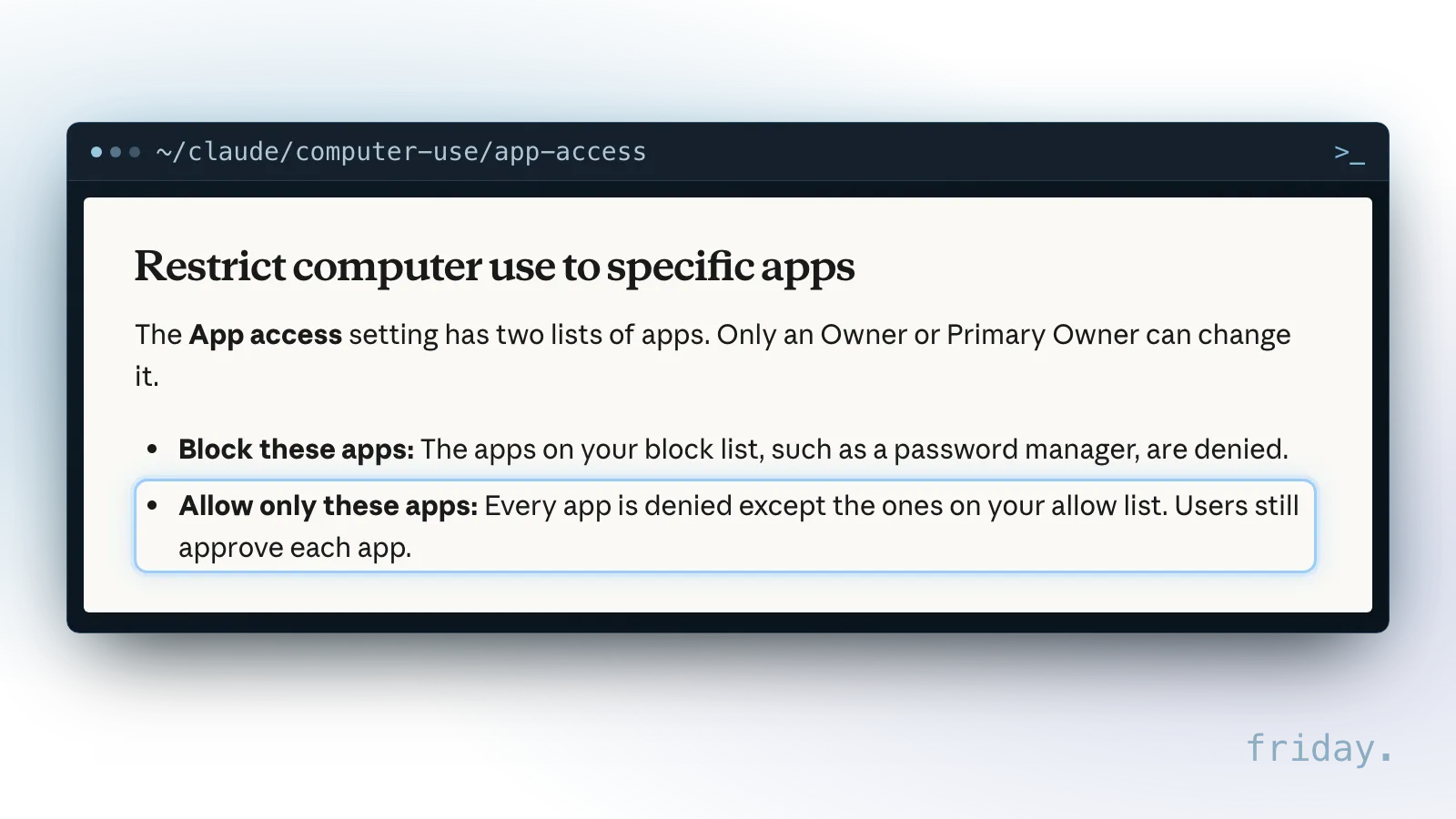
On Team plans, the App access setting is the main control an owner has over Claude computer use. It holds two lists, and one is in use at a time: a block list or an allow list.
Block list or allow list
"Block these apps" denies the apps on the list, such as a password manager. "Allow only these apps" denies every app except the ones on the allow list, and users still approve each app. Only an Owner or Primary Owner can change it, under Organization settings, Capabilities, App access. On a Mac you add an app by its bundle ID, such as com.microsoft.Excel; on Windows, by its program's file name, such as excel.exe. The guide warns that nothing checks whether a typed ID names a real app, so test each one by asking Claude for the app by its exact name.
In Friday's view, a small team should start with an allow list. A block list has to name every app you fear, and a new app installed next month is not on it, so only the user's own approval stands in the way. An allow list starts closed, and the team adds an app only when a real task needs it. Keep password managers, banking apps and payroll software off it.
What the lists do not cover
The setup guide lists what the block and allow lists do not reach. They do not cover Claude's other tools, such as Claude in Chrome or Claude Code; websites and extensions, such as a password manager's extension, inside an approved browser; or apps inside a remote desktop or virtual machine window. Claude can read text copied from a denied app if it is pasted into an approved one, and can affect a denied app through what it does in approved apps. Changes to the lists can also take about an hour, sometimes longer, to reach each user, and until then Claude can still use an app just denied. In Friday's view, this is why the allow list should not include a general web browser unless the team has a clear reason.
A starting allow list for a seven-person bookkeeping firm
For example, a seven-person bookkeeping firm on the Team plan wants Claude computer use to move figures from client PDF statements into spreadsheets and to draft month-end summaries. Before the Owner turns it on, the firm writes a one-page rule set. The allow list holds Excel, the PDF reader and the notes app, and nothing else. The accounting software, the bank portals, the password manager and the browser stay off it. A person, not Claude, sends anything to a client, files anything with a tax authority, and approves any payment. The firm names who on staff can ask the Owner to add an app, and reviews the list once a month.
What Claude computer use sees, saves and leaves open
Turning on Claude computer use changes what Claude can see and touch on a work computer. The setup guide is direct about the risks, and two of its warnings matter for a small business.
Screenshots are saved with the chat
The guide says Claude takes screenshots to see and navigate the screen, "and they're saved with the chat." They can include personal or confidential information. The automated check that reviews Claude's actions can also see the latest screenshot, and Anthropic can keep a copy of it in its record of that check, handled under Anthropic's Commercial Terms and Data Processing Addendum.
No sandbox between Claude and the apps
The guide's first warning reads: "Computer use has no sandbox between Claude and a user's applications." Content on the screen, such as web pages or emails, could cause Claude to take unintended actions. Computer use is also not limited to the folders a user has connected: through approved apps, Claude can open, change or delete files outside them, and a folder marked "Read only" does not apply to computer use. For a team that manages its computers with an MDM tool such as Jamf or Intune, the guide gives a device policy key, computerUseEnabled set to false, that keeps computer use off on chosen computers whichever account is signed in. The guide adds that the key "isn't a lock against someone who can change the app or the computer's settings."
Friday's view on owning the rule set
Claude computer use and Gemini computer use both put the decision with the person who sets them up. For a business, the rule set belongs to the owner. For the same question with Google's assistant at work, see our note on Gemini skills and live Drive files. If one repeated desktop task is the goal, a narrow agent built for that task, with its own written limits, may serve better than broad screen access. That is the kind of bespoke agent and skills work we set up.
Before you turn on Claude computer use
Claude computer use is in beta on Team and Enterprise plans, off by default and rolling out gradually. On Team plans, the controls are the Owner switch and the App access list.
Gemini computer use is rolling out in English in the U.S. to personal Google accounts 18+ on Google AI Plus, Pro and Ultra, on Apple Silicon Macs. Before the Owner flips the switch, write down four things: the allow list and why each app is on it, the steps a person always does, who reviews the first weeks of chats, and how you turn it off, remembering that it can take an hour or longer. If you want a second pair of eyes on your allow list, send us the list you plan to use.
Last checked: November 21, 2026.
Product details come from Anthropic's November 20, 2026 release notes, Anthropic's setup guide for computer use on Team and Enterprise plans, and Google's November 19, 2026 announcement, which are the primary sources, checked November 21, 2026. Both features are rolling out gradually and can change. Friday has no relationship with Anthropic or Google. Statements marked as Friday's view are opinion.